 ArtUp Labs
Published 2026-10-22 · Facts checked 2026-10-22 · By ArtUp Labs, the maker of ArtUp Reports
Short answer. Jira's sprint report is a page in the board's Reports, with no export button; Atlassian's article describes none. Jira's release notes can be copied as Markdown or HTML, saved with the version or published to Confluence, but not downloaded as Word or PDF, and images are not supported. To get a file, export the sprint's or the version's issues with a layout made for it — ArtUp Reports has a Sprint report and a Release notes layout for Word and PDF, and a Sprint summary for Excel.
What Jira Cloud gives you
| Sprint report | Release notes | |
|---|---|---|
| Where | Board → Reports → Sprint report (company-managed spaces, Scrum boards) | Space → Releases → the version → Release notes → Create release notes in Jira |
| Content | The sprint's work items, completed and not, with story points; items added after the start are marked with an asterisk | The work items of the version, with the fields you pick in Formatting options |
| Out of Jira | No export or download described | Copy as Markdown or HTML; save with the version; publish to Confluence as a draft page |
| Limits | One sprint per page; it is not a search you can save or reuse | "Media such as images, videos, and other files, are not yet supported"; notes are regenerated each time you view them |
Sources: Atlassian, View and understand the sprint report; Atlassian, Create release notes; both checked 2026-10-22.
Without an app, the usual route is to copy the release notes as HTML into Word, and to rebuild the sprint report from an Excel CSV of sprint = 123 (see export Jira issues to Excel). Both work; both are manual every sprint.
Four built-in layouts in ArtUp Reports
ArtUp Reports is our export app for Jira Cloud. Word and PDF share four layouts; Excel has four column sets, one of them for sprints. You pick them in the export form; none needs a template.
| Layout | What is in the file | Title of the document |
|---|---|---|
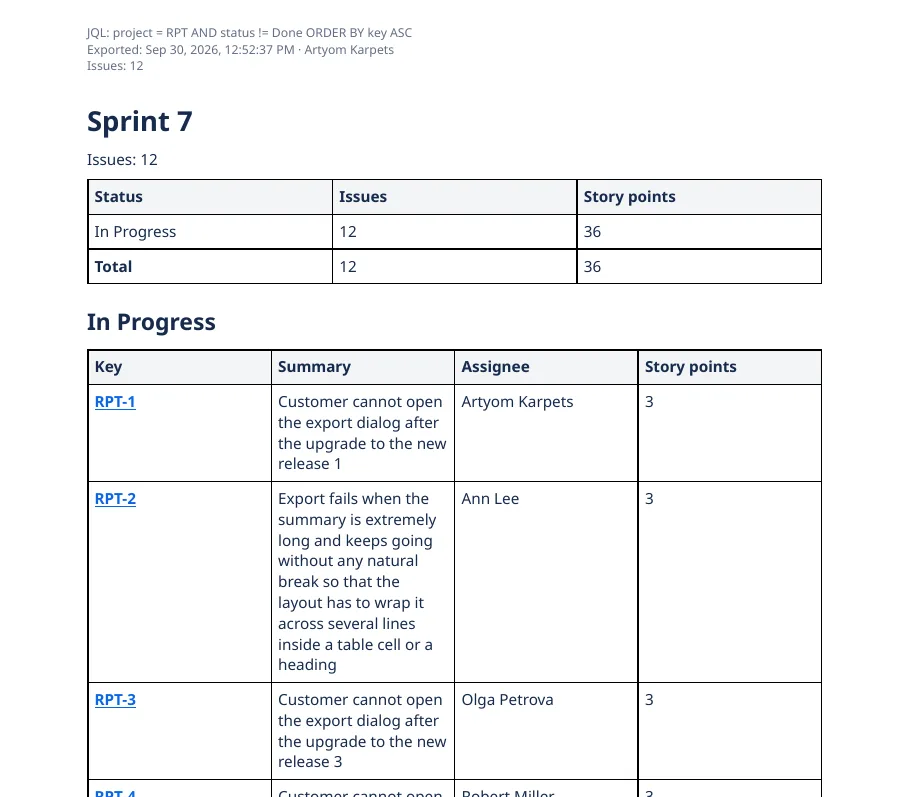
| Sprint report (Word, PDF) | Issue count; a table of issues and story points per status with a total; then a table per status: key, summary, assignee, story points | The Sprint field of the first issue — usually the sprint's name |
| Release notes (Word, PDF) | The issues grouped by issue type, as a bulleted list of key and summary; each key links to the issue | The fix version of the first issue |
| Issue list (Word, PDF) | One table: key, summary, type, status, priority, assignee, due date | — |
| Single issue (Word, PDF) | Every field, description, comments and images, one issue per page | The issue, when you export one |
| Sprint summary (Excel) | Key, summary, type, status, assignee, story points, original estimate, time spent, sprint; one sheet per status, plus a Summary sheet | — |
Every Word and PDF file starts with the JQL, the export time, who exported it and the issue count; PDF comes on A4 or Letter.
Recipes
A sprint report as PDF or Word
- On the backlog or the board, open the sprint's ••• menu → Export sprint issues. The source becomes
sprint = <id> ORDER BY Rank ASC. - Choose PDF (A4 or Letter) or Word, and the layout Sprint report.
- Export. The file name defaults to
{project}-{date}-{filter}, which here gives something likeABC-2026-10-22-sprint-123.pdf.
Measured On 2026-09-30, in Chrome on our test site, a PDF sprint report of a 33-issue sprint took 11 seconds; Cyrillic, Chinese, Japanese and Korean text was readable and the tables stayed inside the margins.
Release notes as Word or PDF
- Open Apps → ArtUp Reports and type the JQL of the release, for example
fixVersion = "2.4.0" AND statusCategory = Done, or run that search and use Apps → Export to Excel, Word or PDF. - Choose Word or PDF and the layout Release notes.
- Export. The issues come grouped as Bug, Story, Task and so on — whatever issue types the release holds.
Release notes need more than key and summary — a customer-facing intro, a field such as "Release note text"? Make a Word template with {{field "Release note text"}} inside an issues loop and save it for the project; see Word templates. One release that spans several Jira projects is the job of our other app, ArtUp Release.
A sprint in Excel
Same sprint menu, choose Excel and Sprint summary. Story points and hours are numbers, so a pivot table or a SUM works without cleanup; issue keys are links.
Scope change: what was added or removed mid-sprint
The Sprint report layout shows the issues that are in the sprint at the moment you export, by their status now. It does not mark what was added after the start or list what was removed — that history is not in the issue fields an export reads. JQL cannot ask for it either: Jira answers History searches do not support the 'sprint' field. Our JQL app ArtUp Query adds addedAfterSprintStart and removedAfterSprintStart; put one in the export's JQL to get a file of exactly those issues:
issue in addedAfterSprintStart("ABC board", "ABC Sprint 12")How these functions count, and how they compare with Jira's own sprint report, is in issues added or removed after sprint start.
Limits
- Word and PDF files hold up to 2,000 issues; Excel has no fixed limit.
- Story points are read from the field named Story Points or Story point estimate.
- In Sprint report and Issue list the columns share the page width equally, so long summaries wrap onto several lines.
- The export runs when you click; it is not scheduled or emailed.
Sprint reports and release notes as files
ArtUp Reports exports a sprint, a version or any search to Word, PDF on A4 or Letter, and Excel — with built-in layouts or your own Word template.
ArtUp Reports is on the Atlassian Marketplace. Sites with up to 10 users use it free.