 ArtUp Labs
Published 2026-10-08 · Last checked 2026-10-08
Results
Tested on 8 October 2026 in our development store, on a product with a 3D model. Measured
| Theme | Version | Tested | Result |
|---|---|---|---|
| Dawn | 16.0.0 | 2026-10-08 | Works |
| Refresh | 16.0.0 | 2026-10-08 | Works |
| Sense | 16.0.0 | 2026-10-08 | Works |
| Craft | 16.0.0 | 2026-10-08 | Works |
| Studio | 16.0.0 | 2026-10-08 | Works |
| Horizon | 4.2.0 | 2026-10-08 | Works (block lands under the gallery by default) |
| Prestige | 11.4.1 | 2026-10-08 | Works |
| Impulse | 9.2.0 | 2026-10-08 | Works (block at the bottom of the product column) |
| Broadcast | 8.1.1 | 2026-10-08 | Works (fixed in app version 7, re-tested 2026-10-08) |
Dawn, Refresh, Sense, Craft, Studio and Horizon are free Shopify themes. Prestige, Impulse and Broadcast are paid themes; we tested them as theme trials.
What it looks like
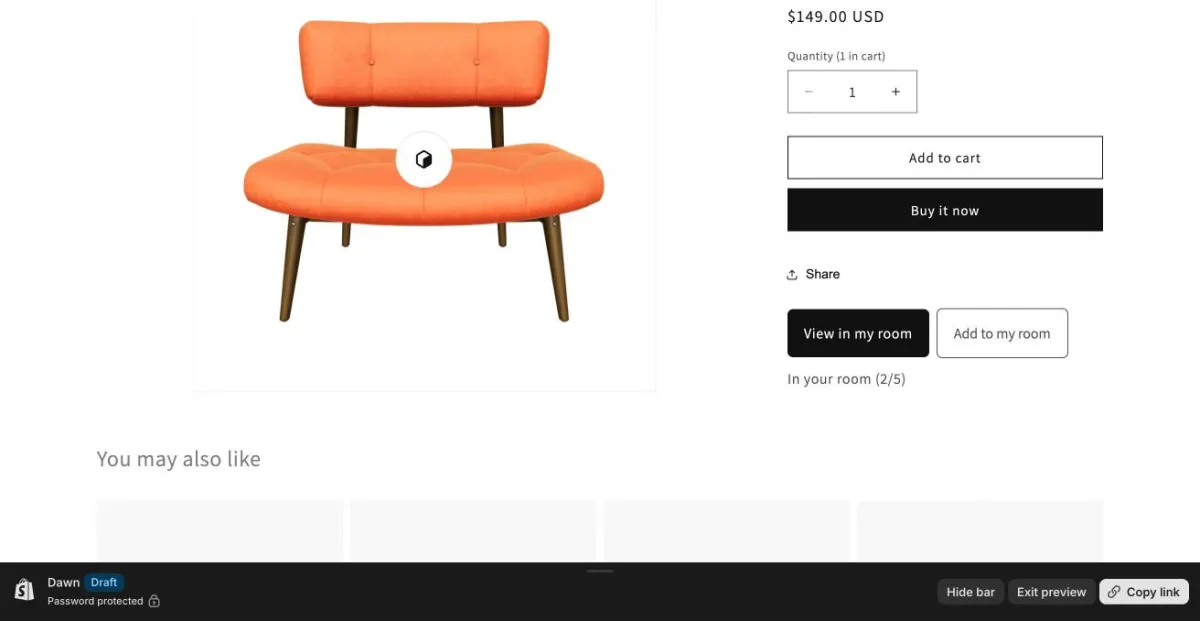
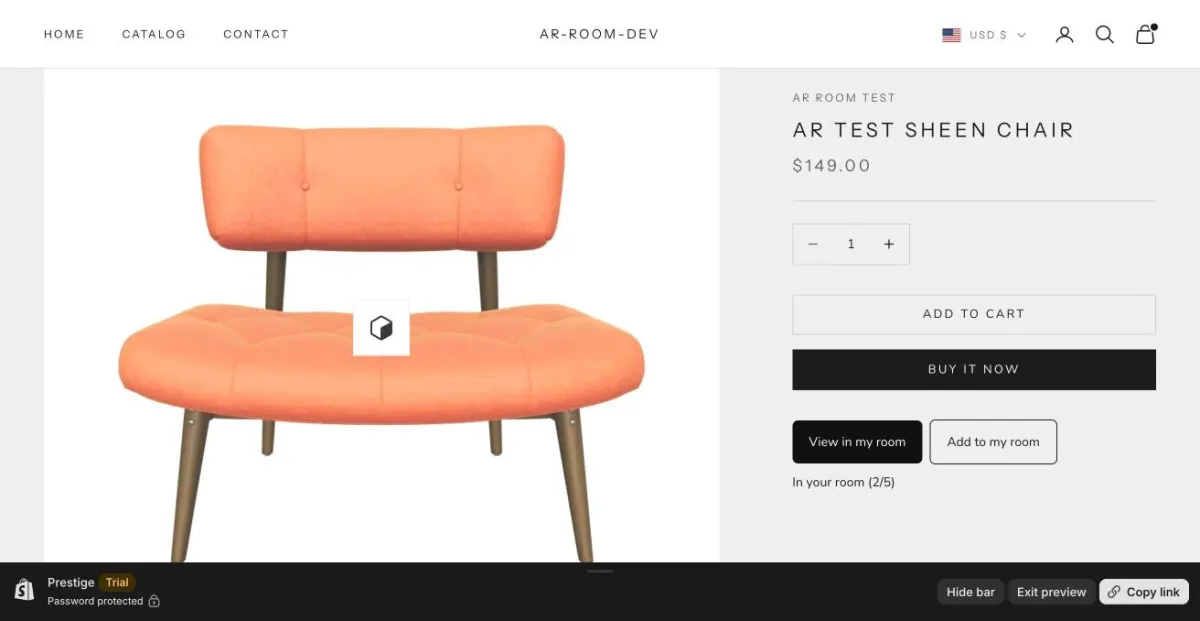
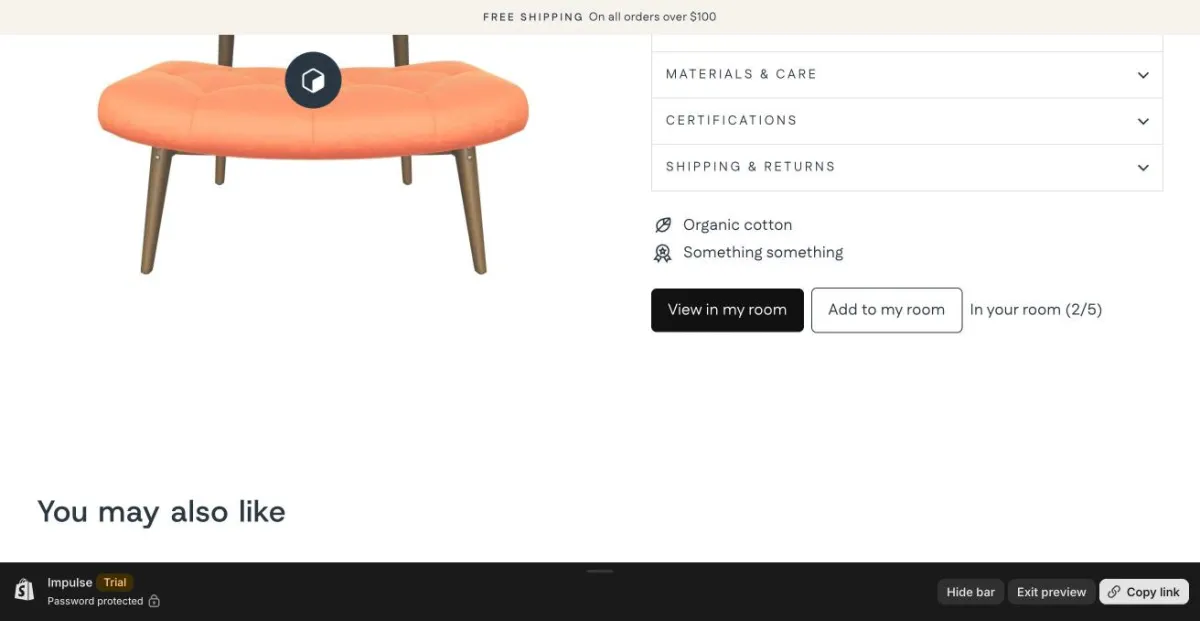
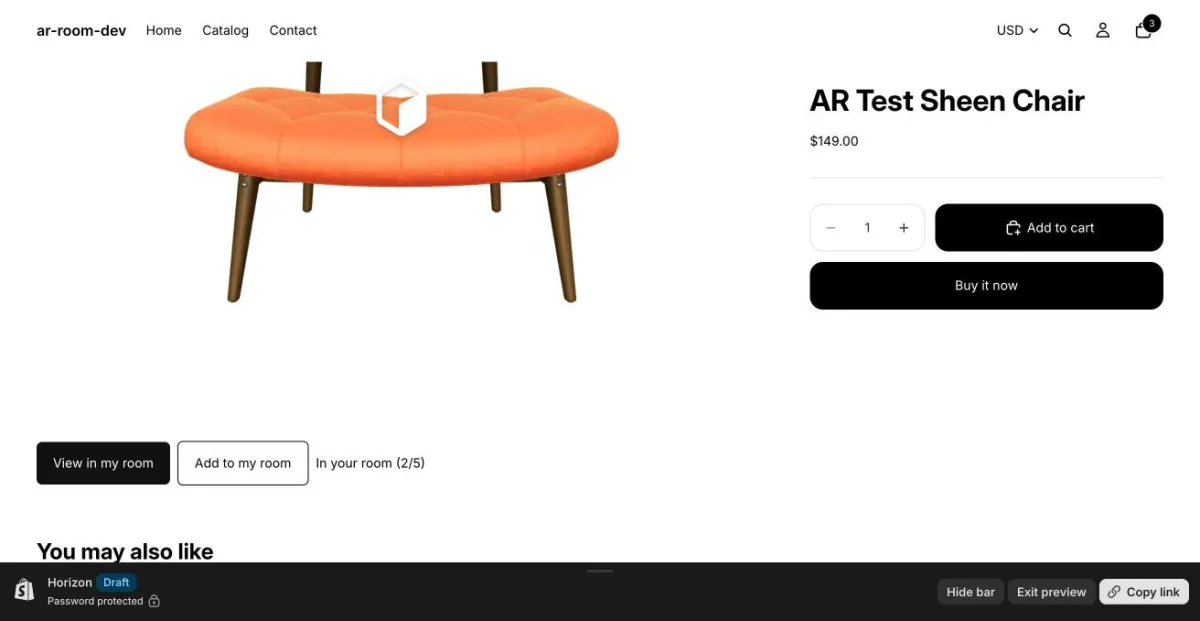
How to add the block
- In Shopify admin open Online Store → Themes and click Customize.
- Switch to a product template (the page selector at the top).
- In the product information section click Add block, open Apps and choose AR Room button.
- Drag the block where you want it (for example under the buy buttons) and click Save.
The block shows “View in my room” and “Add to my room” only on products that have a 3D model. Labels and the button color are in the block settings.
Notes
- Horizon: the block is placed under the product gallery by default, across the page. Drag it into the product information column in the theme editor if you want it next to the buy buttons.
- Impulse: the block is added at the bottom of the product column, below the collapsible tabs. Move it up in the theme editor if you want it closer to Add to cart.
- Broadcast: the block shows, but the theme cancels clicks on links whose address is a placeholder “#”, and our button used one until the page script filled in the room address. Since app version 7 the block renders the real room link in the page itself, and “View in my room” opens the room in Broadcast too (re-tested 2026-10-08).
- Paid themes (Prestige, Impulse, Broadcast) were tested as theme trials, not on a live store using them.
- Performance: the block adds 3 requests, about 5.3 KB transferred (a 386-byte stylesheet and two scripts of 2.2 KB and 2.7 KB); both scripts load with
defer. We have not yet measured the effect on LCP or CLS. - Your theme not listed? The block uses Shopify's standard app block, so most Online Store 2.0 themes should show it. If it doesn't work in yours, write to [email protected] with the theme name and version.
Add 3D to every product, from the photos you already have
ArtUp: 3D Models & AR Room makes a 3D model from each product photo inside your Shopify admin, lets you accept or regenerate it, adds it to the product's media, and lets shoppers place several products together in their room.
Coming to the Shopify App Store — until then the first button opens the app's page.