 ArtUp Labs
Published 2026-10-08 · Last checked 2026-10-08
What the generator has to guess
A single product photo shows one side of the item. The generator builds the full shape and texture from that one view, so it has to infer the back, the underside and the thickness of every part. Most furniture is symmetric and made of solid parts, which is why it works well. Things that don't follow that pattern are where it struggles.
What we measured
Before building the app we ran a test (3 October 2026): the first product photo of 10 furniture items from public Shopify stores in the US — 3 chairs and armchairs, 3 tables, 2 sofas, a table lamp and a bookcase. One attempt each, no manual edits. Measured
| Category | Accepted on review |
|---|---|
| Chairs and armchairs | 3 of 3 |
| Tables | 3 of 3 |
| Sofas | 2 of 2 |
| Lamp and bookcase | 2 of 2 |
Read this honestly: it is a small sample, reviewed by eye on a desktop screen (not in AR on a phone), with an overall judgement rather than a score per detail. It says ordinary furniture photos usually work. It does not say every photo will. Generation took 135–209 seconds per model in our runs.
Where photo → 3D fails
These limits come from how single-photo generation works; we haven't measured failure rates for each one.
- Glass and mirrors. Transparent or mirrored surfaces have no visible colour of their own. Glass tabletops and cabinet doors come out opaque, tinted or smeared.
- Very thin legs, wire frames, rattan and cane. Thin parts are a few pixels wide in the photo. They can come out thicker, bent, merged with each other, or with gaps filled in.
- Detailed fabric. Bouclé loops, fine weave, quilting and pleats become a printed texture on a smooth surface, not real 3D detail. From a distance this looks right; close up it looks flat.
- Glossy and reflective finishes. Lacquer, chrome and polished stone reflect the room around them; those reflections get baked into the colour.
- Hidden parts. What the photo can't see — the back of a sofa, the inside of a drawer — is a plausible guess, not the real product.
- Size. A photo has no scale. The model's proportions follow the photo, but its real size has to be set from the product's dimensions before AR, otherwise a chair may appear doll-sized or huge.
Example
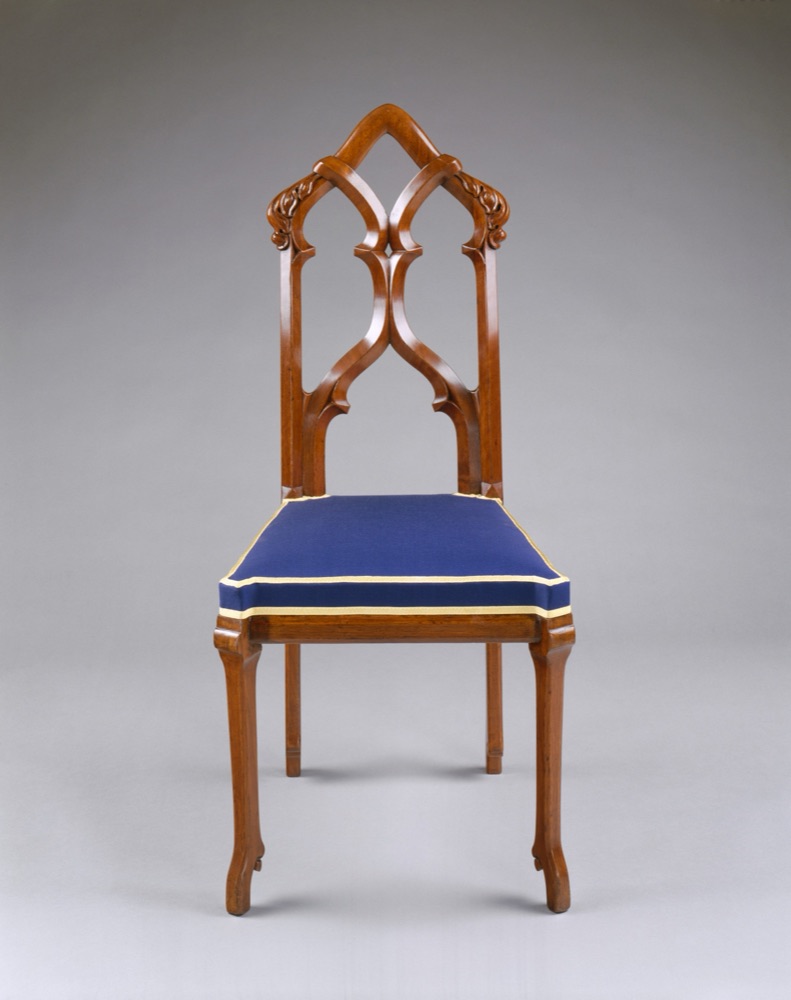
A carved chair with turned legs from one museum photo. Look at the legs and the back when you rotate it: the front view is close to the photo, the back is inferred.
How to shoot a photo that works
- One object in the frame. Remove the side table, plant, cushions that aren't part of the product, and people.
- Plain background. A white or evenly coloured wall, or a studio cut-out on white.
- The whole item. Nothing cropped at the edges; legs fully visible down to the floor.
- A three-quarter angle. Front and one side visible gives more shape than a straight front view.
- Soft, even light. No hard shadows across the item, no bright reflections.
- Sharp and large enough. A sharp photo where the item fills most of the frame; your existing catalog photo is usually fine.
Then check the result before it goes live: rotate the model, look at the legs and the back, and regenerate or reject it if it isn't right. The app has an accept / regenerate / reject step for this reason.
Try it on your own photo: free 3D preview.
Add 3D to every product, from the photos you already have
ArtUp: 3D Models & AR Room makes a 3D model from each product photo inside your Shopify admin, lets you accept or regenerate it, adds it to the product's media, and lets shoppers place several products together in their room.
Coming to the Shopify App Store — until then the first button opens the app's page.