 ArtUp Labs
Published 2026-10-08 · Last checked 2026-10-08
Side by side
| Photo → 3D | 3D artist | Scan app | |
|---|---|---|---|
| Input | One existing product photo | Photos, drawings, dimensions | The physical item, many photos or a LiDAR scan |
| Time per model | 135–209 s to generate in our tests Measured | Varies — ask for turnaround | A capture session per item, plus processing; varies |
| Cost per model | Included in the app plans; see pricing on the listing | Varies — quoted per model | Free tiers exist; paid plans for more captures and formats (source: Polycam pricing) (source: KIRI Engine pricing) |
| File for Shopify | GLB 3.0–4.3 MB after compression in our tests; Shopify made the USDZ Measured | Whatever you specify (ask for GLB) | Depends on the app and plan (e.g. Polycam: glTF on all plans, USDZ on paid plans) (source: Polycam pricing) |
| Real dimensions | No — set the height from the product data | Yes, from your drawings | Yes, if the scan is good |
| Hidden sides | Inferred from one view | Modelled from references | Captured if you walk around the item |
| Weak spots | Glass, thin legs, fine fabric detail, reflections | Cost and time at catalog scale | Glossy, transparent and thin parts; needs the item in hand |
| Best for | Many products with photos and no models | Hero products, configurators, exact detail | Items in your showroom or warehouse |
Our numbers come from our own runs in October 2026: 10 furniture photos and several live runs through the app's pipeline; the cost is the generator's list price per run, not a retail price. Where we have no source for another option, the table says “varies” instead of guessing.
Photo → 3D
The only option that starts from what a store already has. It is fast enough to run over a catalog, and you can reject a bad result and try another photo. The trade-off is accuracy: the back is inferred and the size has to be set. Details: what works and what fails.
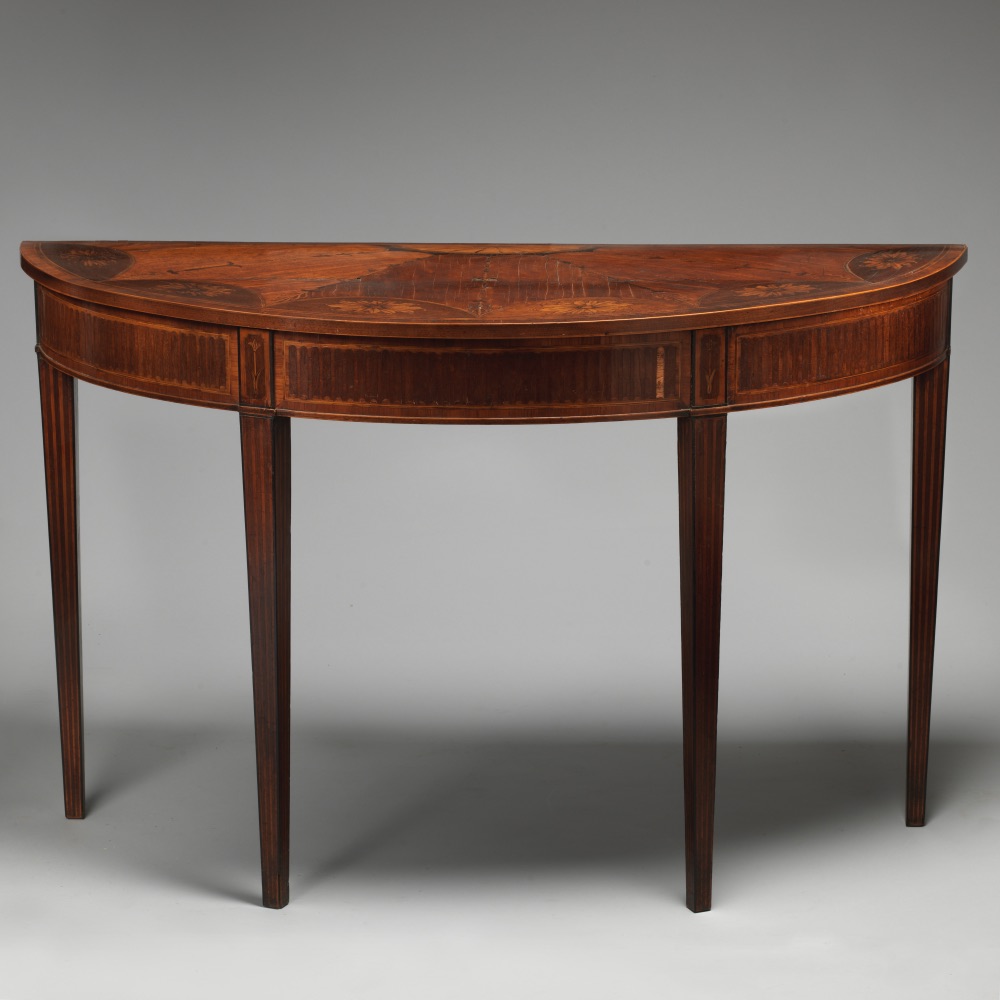
A 3D artist
The most accurate option and the only one that handles configurable products well (fabric swatches, finishes, sizes). It is also the slowest and most expensive per product, which matters when the catalog has hundreds of items. Shopify's help suggests finding a 3D modeler through its Partner Directory and asking for a GLB. (source: Shopify Help: hire a 3D expert) Give the artist Shopify's checklist (about 4 MB, textures up to 2048 px) so the file loads fast. (source: Shopify 3D model standards checklist)
Scan apps (Polycam, KIRI Engine)
Phone apps that build a model from many photos (photogrammetry) or a LiDAR scan. Polycam and KIRI Engine both have free plans. (source: Polycam pricing) (source: KIRI Engine pricing) They need the physical item and a careful capture around it, and they struggle with the same materials as photo → 3D: glossy, transparent and very thin parts. Check which export formats your plan includes before you scan a whole showroom.
How to choose
- Hundreds of products, only photos: photo → 3D for the catalog; an artist for the few hero products.
- Items in a showroom, simple materials: a scan app is worth trying.
- Configurable or high-ticket products: a 3D artist.
Test the first option on your own product: free 3D preview from a photo.
Add 3D to every product, from the photos you already have
ArtUp: 3D Models & AR Room makes a 3D model from each product photo inside your Shopify admin, lets you accept or regenerate it, adds it to the product's media, and lets shoppers place several products together in their room.
Coming to the Shopify App Store — until then the first button opens the app's page.